Introduction
A navigation menu in web development is more than a method of assisting users to orient themselves in the application, it is also part of your user experience and your brand. With Liferay you sometimes need something more than the usual navigation alternatives. Perhaps you are redesigning your site header or you wish to incorporate a side navigation panel into your site that can respond to active dynamic site structures.
It is fortunate because Liferay Fragments and Navigation Menu Selector setup make this flexible and easy.
What is the Navigation Menu Selector?
Liferay enables you to configure Navigation menus using the control panel (Site > Navigation > Navigation Menus). When using the Navigation Menu Selector configuration, enable editors to pick any one of these preconfigured menus during the process of page construction.
This method leaves site admins with absolute freedom to handle menus without having to recourse to code handling once more.
Create a Custom Navigation Menu
- Accessed at Site Menu > Site Builder > Navigation Menu.
- To make a new Navigation Menu, press the New button.
- To add the menu item click the Add button.
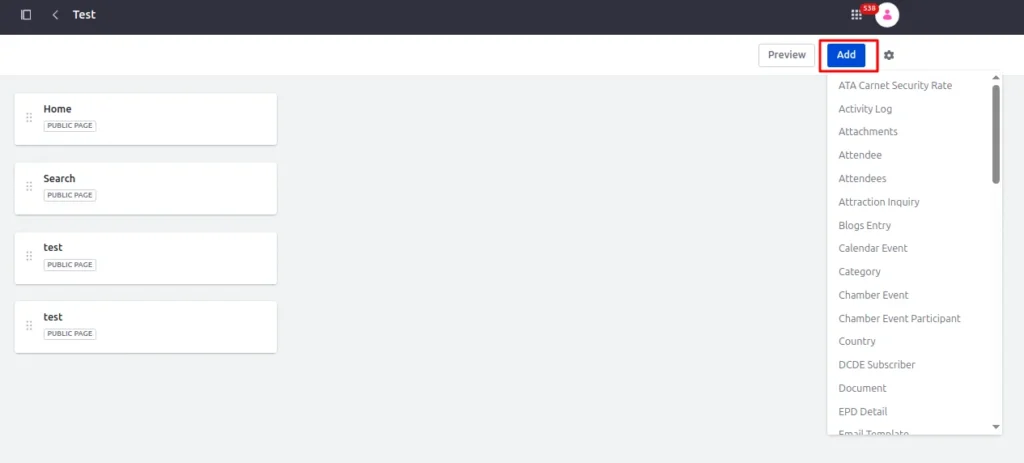
Your menu is now created.
Create a Custom Navigation Menu Fragment
Step 1 : Create new Fragment Collection and Fragment
Click Site Menu > Design > Fragments.
Tap the + icon to add a new Fragment Collection (e.g. Custom Navigation Fragments).
Within this collection, proceed to click + Fragment and name the same (such as Dynamic Navigation Menu).
Step 2 : Fragment HTML definition
This is a simple structure based on the in-build navigation-menu Freemarker tag :
					[#assign
displayDepth = (configuration.sublevels?number + 1)
entries = sourceObject.navItems
portletDisplay = themeDisplay.getPortletDisplay()
/]
<div id="navbar-main" class="d-none d-md-block">
	<ul class="navbar-blank navbar-nav navbar-site" role="menubar">
		[#list entries as navItem]
		[#assign hasChildren = navItem.hasBrowsableChildren()
		isActive = navItem.isSelected() || navItem.isChildSelected()/]

		<li class="lfr-nav-item nav-item [#if hasChildren]dropdown[/#if] [#if isActive]active selected[/#if]">
			<a class="nav-link [#if hasChildren]dropdown-toggle has-dropdown[#else]no-children[/#if]"
				href="[#if hasChildren]#[#else]${navItem.getURL()}[/#if]" [#if
				!hasChildren]${navItem.getTarget()?if_exists}[/#if]>
				<span class="text-truncate">${navItem.getName()}</span>
			</a>
			[#if hasChildren]
			<ul class="child-menu dropdown-menu">
				[#list navItem.getChildren() as child]
				<li>
					<a class="dropdown-item [#if child.isSelected()]active[/#if]" href="${child.getURL()}"
						${child.getTarget()?if_exists}>
						${child.getName()}
					</a>
				</li>
				[/#list]
			</ul>
			[/#if]
		</li>
		[/#list]
	</ul>
</div>
Step 3: Insert Configuration Field to Navigation Menu Selector
- Go into the Configuration tab of the Fragment editor and paste the following JSON :
					{
    "fieldSets": [
        {
            "fields": [
                {
                    "label": "source",
                    "name": "source",
                    "type": "navigationMenuSelector"
                },
                {
                    "defaultValue": "horizontal",
                    "label": "display-style",
                    "name": "displayStyle",
                    "type": "select",
                    "typeOptions": {
                        "validValues": [
                            {
                                "label": "horizontal",
                                "value": "horizontal"
                            },
                            {
                                "label": "stacked",
                                "value": "stacked"
                            }
                        ]
                    }
                },
                {
                    "defaultValue": "-1",
                    "label": "sublevels",
                    "name": "sublevels",
                    "type": "select",
                    "typeOptions": {
                        "validValues": [
                            {
                                "label": "all",
                                "value": "-1"
                            },
                            {
                                "label": "0",
                                "value": "0"
                            },
                            {
                                "label": "1",
                                "value": "1"
                            }                        ]
                    }
                }
            ]
        },
        {
            "configurationRole": "style",
            "fields": [
                {
                    "label": "hovered-item-color",
                    "name": "hoveredItemColor",
                    "type": "colorPicker"
                },
                {
                    "label": "selected-item-color",
                    "name": "selectedItemColor",
                    "type": "colorPicker"
                }
            ]
        }
    ]
}
Step 4: Make it pretty with CSS
- Add your own styles in the CSS tab to make the menu look good.
Step 5: Use the Fragment on a Page
- Go to any content page.
- Click Edit and drag your custom navigation fragment onto the page.
- In the sidebar, use the Navigation Menu Selector to choose the appropriate menu.
- Publish the page.
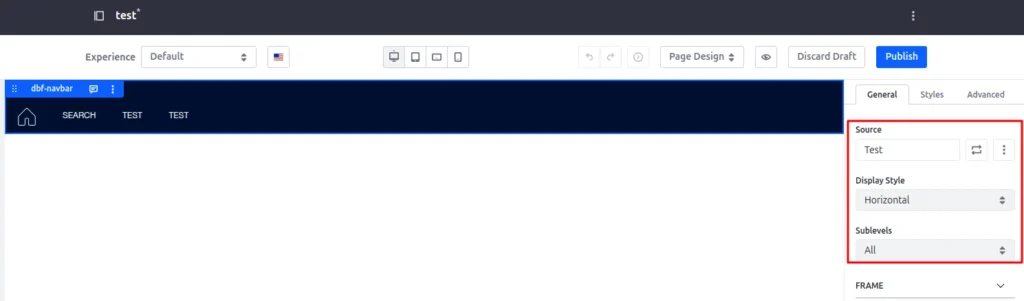
On the right side panel, you will have the options to choose the menu, sublevel and display style.
The Strength of this Approach.
No Hardcoding : menus can be chosen/changed by editors at any time.
Reusable : The same fragment could be applied on different pages and set-up differently.
Designing Freedom : Your total freedom over HTML & CSS.
Conclusion
Using Navigation Menu Selector setting, Liferay enables creating configurable and dynamic navigation menus within Fragments easily. This approach increases flexibility of the site, minimizes development overheads and brings power to content editors.
When creating anything using the Header Builder, Sidebar Builder, or Footer Builder, when you make it a fragment, you can rest assured that it will fit everywhere without any break.