Introduction
Starting with Liferay 7.4, a new feature called Client Extensions was introduced. These let you customize Liferay applications in a more modern and flexible way, without being tightly linked to the core system.
One simple but powerful example of customization is adding a favicon (the small icon that appears in the browser tab). It’s a small detail, but it makes a big difference for branding and giving your site a professional look.
With a Theme Favicon Client Extension you can override the default favicon of your Liferay theme on individual pages or system wide. This guide will take you through step by step.
Prerequisites
Liferay 7.4 or later
Creating a Theme Favicon Client Extension
You can create the client extension in two ways :
Using the Client Extension Admin Panel (UI-based)
Using Blade CLI (developer approach)
1. By means of the Client Extension Admin Panel
Click on the Global Menu ( Applications Menu).
To enter the Applications tab, find Client Extensions on it.
Click the + Add button and choose Add Theme Favicon.
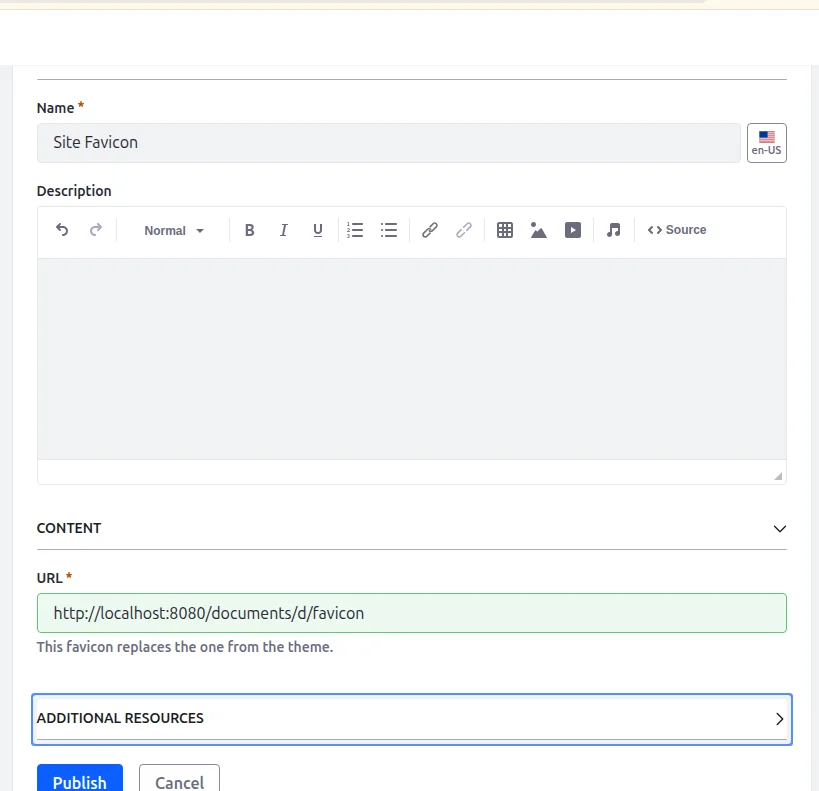
Include the Favicon
- Name & Description : Assign a descriptive name and description to favicon.
- Either :
- A pointer to an excluded favicon on an online.
- Upload it to Documents & Media and share the URL.
- Source Code URL (Optional) : Fill in the repository URL (e.g. GitHub) where the source files of favicon should be located. This can be applied to aid debugging, version control or sharing with other developers.
2 : Making using a Blade CLI
Blade CLI allows developers more freedom.
Step 1 : Run Check Workspace Plugin Version
Make sure you use a work-space sync version at least 10.1.1 of the liferay workspace plugin. I have put it in settings.gradle :
classpath group: "com.liferay", name: "com.liferay.gradle.plugins.workspace", version: "10.1.1"
Step 2 : Generate the Extension
From your workspace root, see the available client extensions :
blade samples client-extensions -l
Now create a favicon extension :
blade samples client-extensions liferay-sample-theme-favicon
This creates a client-extensions/ folder with your favicon project inside.
Step 3 : Project Structure
Your extension will look like this :
					client-extensions/
└── learnory-theme-favicon/
    ├── assets/
    │   └── favicon.ico
    ├── client-extension.yaml
    └── build.gradle
Understanding the Configuration
- Open the client-extension.yaml file :
					learnory-theme-favicon:
  name: Learnory Theme Favicon
  type: themeFavicon
  url: favicon.*.ico

assemble:
  - from: assets
    hashify: favicon.ico
    into: static
Breakdown
- ID : learnory-theme-favicon → unique identifier
- type : themeFavicon → defines extension type
- url : favicon file location
- assemble block : ensures files in assets/ (like favicon.ico) are bundled as static resources
Deploying the Extension
- From the workspace root, deploy with :
./gradlew clean deploy -p client-extensions/learnory-theme-favicon
If successful, you’ll see logs confirming the deployment.
Applying the Favicon to a Page
- Navigate to your page.
- Click the Configuration icon at the top.
- In the sidebar, open Design → Basic Settings.
- Find the Favicon input.
- Switch to the Client Extensions tab.
- Select your newly deployed extension.
- Click Save.
Preview
Here’s what it looks like in action :

Conclusion
The Theme Favicon Client Extension in Liferay 7.4 allows a clean and modular branding of your portal on a favicon level. In contrast to ancient theme-based strategies, client extensions are small and planned, and not instance-dependent.
It can be used both by an administrator who takes care of the branding process and the developer who is able to provide the company with efficient solutions which can be changed later. A little bit of effort will enable you to polish up the feel of your portal.